To begin with, if you’re unsure about what UDISE Plus is, here’s a simple explanation: it is a unified platform that stores comprehensive educational data for schools and colleges. It includes several modules such as the UDISE Plus Teacher Module, Student Module, Data Entry Module, and more. The core objective of UDISE+ SDMS is to simplify education management by efficiently handling teacher, student, and infrastructure-related information.
In this guide, we have detailed the UDISE Plus Teacher Module, explaining all its features. You will learn how to log in, what activities you can perform, and also discover useful tips to navigate the platform smoothly.
What is the UDISE Plus Teacher Module?
The UDISE+ Teacher Module is a dedicated platform that allows authorized school administrative staff to add, update, verify, and monitor teacher records. This includes details such as joining information, service history, qualifications, training, and any status changes. The system ensures smooth management of teacher profiles, keeping all records accurate and up to date. Whether it involves non-teaching staff, managing staff updates, or other related tasks, everything is handled securely in one place.
To get started, simply log in to the UDISE Plus Teacher Module through the official website. Once signed in, you can carry out all necessary tasks. Ahead, we will explain the complete Teacher Module login process.
How to Login the UDISE Plus Teacher Module?
Accessing the UDISE+ Teacher Module for 2025–2026 is simple and user-friendly. However, if you encounter any difficulty, you can follow the step-by-step instructions provided below.
- Visit the official UDISE+ website and open the Teacher Module Login page- https://udiseplus.gov.in/udiseteacher
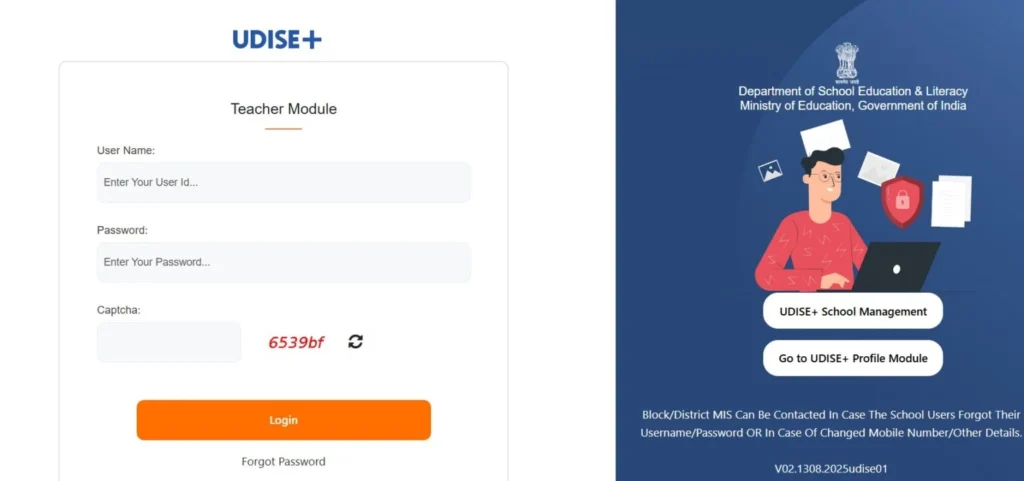
- Enter your username, which is your school’s 11-digit UDISE code.
- Enter the password provided by the Block or District MIS team.
- If you are logging in for the first time, change your password immediately.
- After entering your credentials, fill in the captcha code by typing the characters shown.
- Once logged in, the UDISE Plus dashboard will appear.
- Navigate to the Teacher Module section.
- From here, you can add, update, and monitor teacher profiles and status information.
Recommended First-Time Setup for the UDISE Plus Teacher Profile
This section is for users logging in for the first time.
- After logging in with the password provided by the Block or District MIS, make sure to change your password.
- You can update your password under Profile → Security.
- Once logged in, verify the school details. If any information is incorrect, immediately request the Profile and Facility Module coordinator to update it.
- Prepare a team checklist, assigning roles such as UDISE data entry, data review, and final submission.
What do you need to log in?
Key Requirements for Logging into UDISE+ Modules
- Username: Each school’s 11-digit UDISE code serves as the User ID, provided by the state. You can obtain it from your Block or District MIS office.
- Password: The password is provided by your team, but for security reasons, it must be changed during your first login.
- Browser & Contact: Use a reliable browser like Chrome, Edge, or Firefox, and ensure you have a mobile number capable of receiving OTPs.
| Tip: If your previous UDISE code was 10 digits, simply add a leading zero to make it 11 digits. |
Adding Teaching Staff Details
Using the UDISE Plus Teacher Module, follow these steps to add a new teacher:
- Click on the “Add Teaching Staff” option.
- Fill in the teacher’s personal details, including name, gender, date of birth, Aadhaar number, staff code, social category, academic/professional qualifications, mobile number, and email. The ID Card number is mandatory for new entries.
- Specify the teacher’s main subject, appointment type (regular or contract), and joining date.
- Enter appointment details, such as the class they will teach and their primary subject.
- Provide training information, including sessions like special needs education, cyber safety, or NISHTHA training.
- Once all details are entered, click “Save & Next.”
Adding Non-Teaching Staff
Using the UDISE Plus portal, you can add non-teaching staff by following these steps:
- Click on “Add Non-Teaching Staff” and enter all relevant details, including name, gender, Aadhaar number, and other required information.
- Select the staff member’s designation from the drop-down menu.
- Click “Update” to save the information.
This process is simple and helps manage non-teaching staff efficiently.
Adding VTP Staff
- Click on the “Add VTP Staff” option.
- Enter the staff member’s details in the same way as other staff entries, including name, qualifications, and appointed sector (e.g., Agriculture or IT).
- Provide their training status and the class they will teach.
- After filling in all information, click “Save” to complete the process.
FAQ
What is the UDISE Plus Teacher Module?
The UDISE Plus Teacher Module is a digital platform that allows authorized school staff to manage teacher records. It enables adding, updating, verifying, and monitoring teacher details, including qualifications, service history, training, and appointment status.
Who can access the UDISE Plus Teacher Module?
Only authorized school administrative staff, such as the Head of School or designated personnel, can log in and manage teacher information. Access is granted via a school’s 11-digit UDISE code and a secure password provided by the Block or District MIS.
What tasks can be performed in the Teacher Module?
Users can add new teaching and non-teaching staff, update existing profiles, track training and appointments, manage subject assignments, and maintain accurate teacher records for smooth school management.